
 Español
 Français
 Deutsch
 Português
Set up your new inthesk with Android
Welcome to the inthesk community!
These steps will guide you through the process of configuring your inthesk:
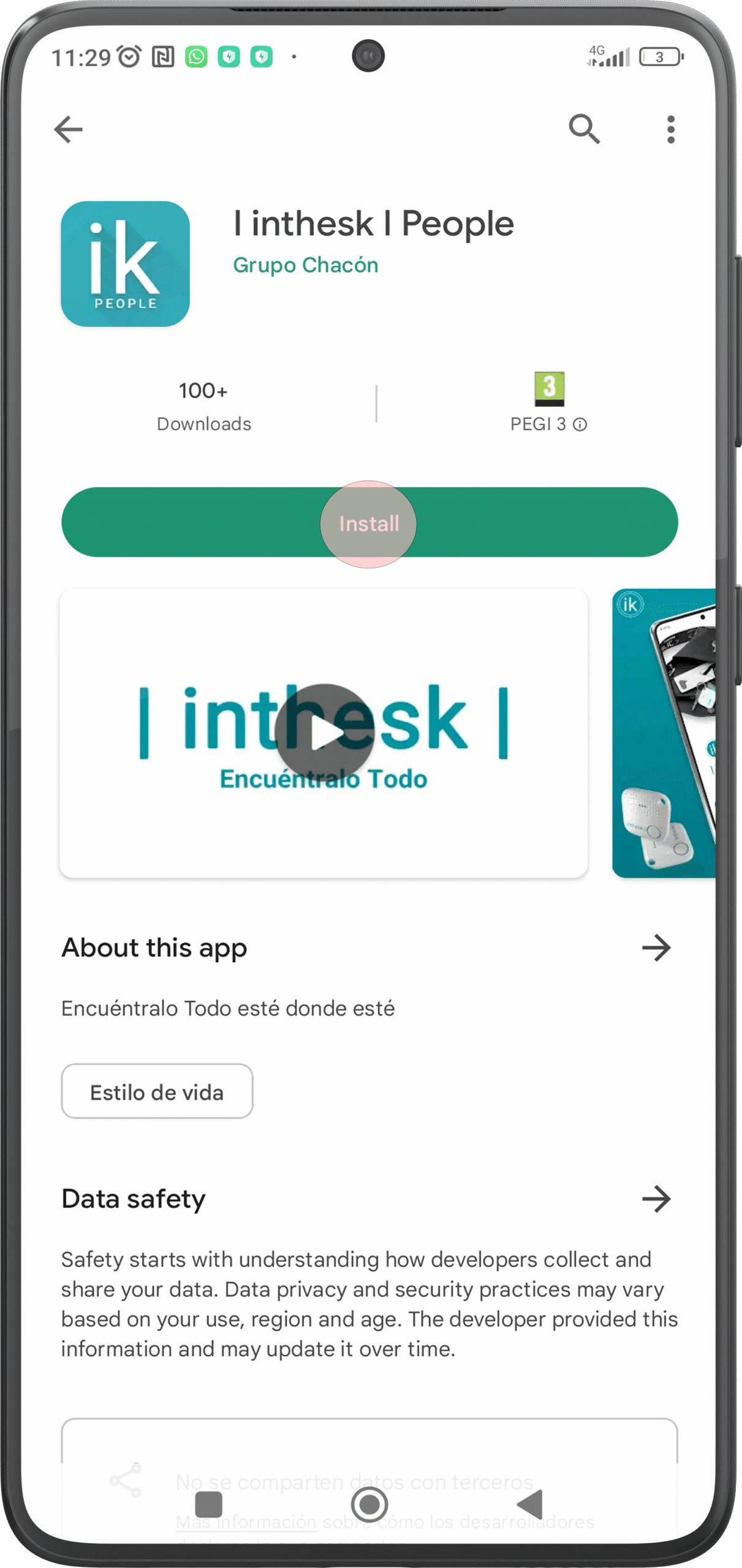
1. Download the app | inthesk | People. Go to the Google Play Store, download and install the mobile app | inthesk | People.
2. Create an account / Sign in
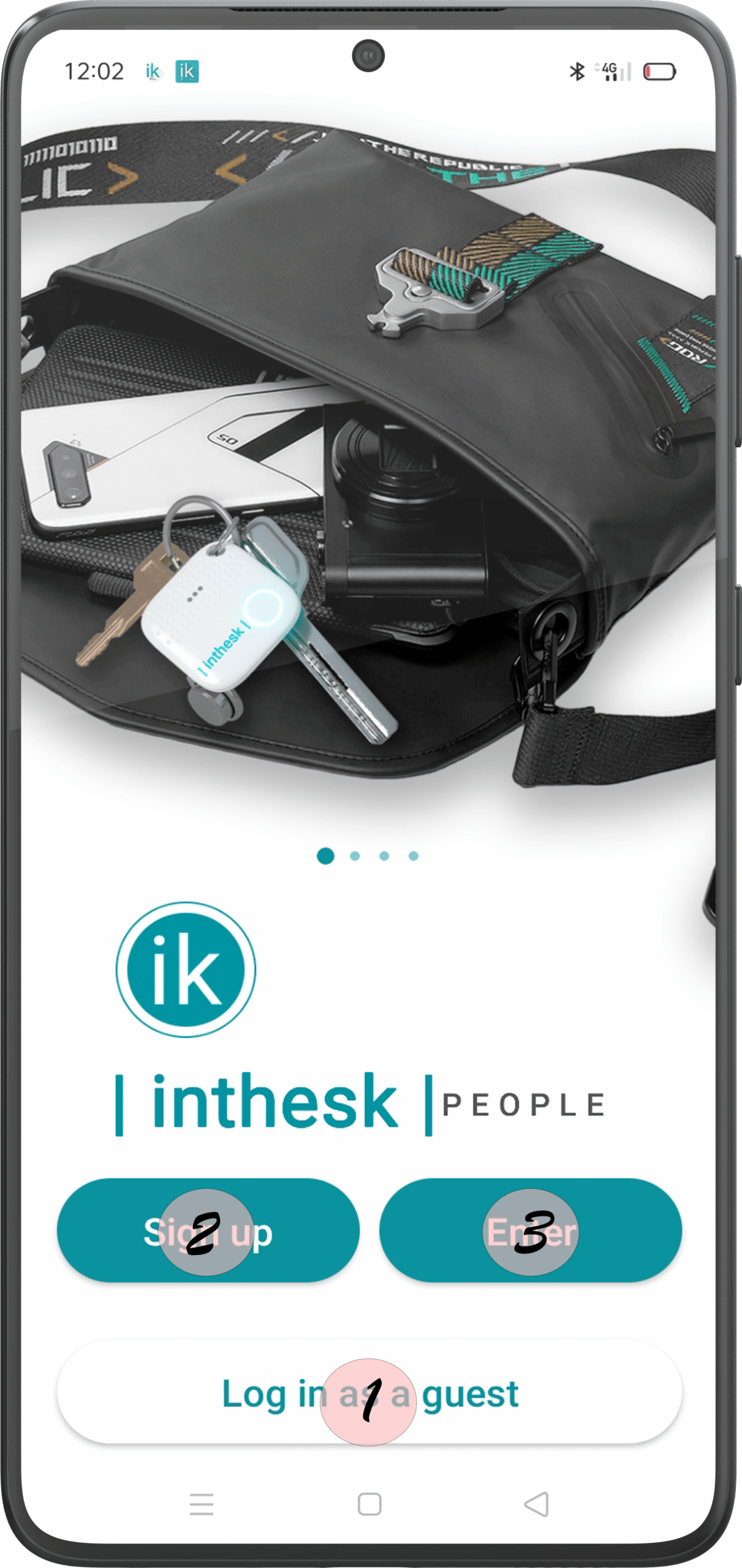
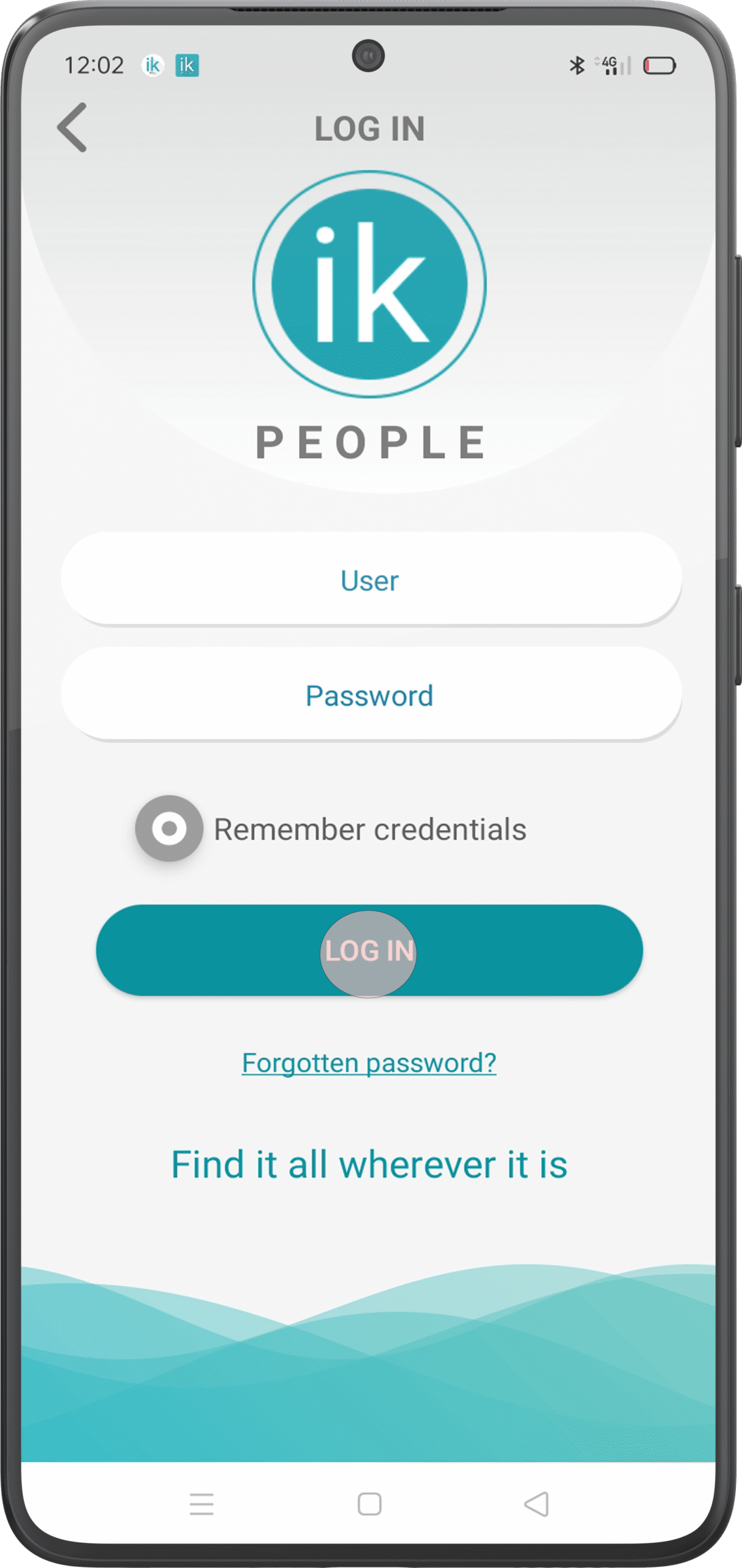
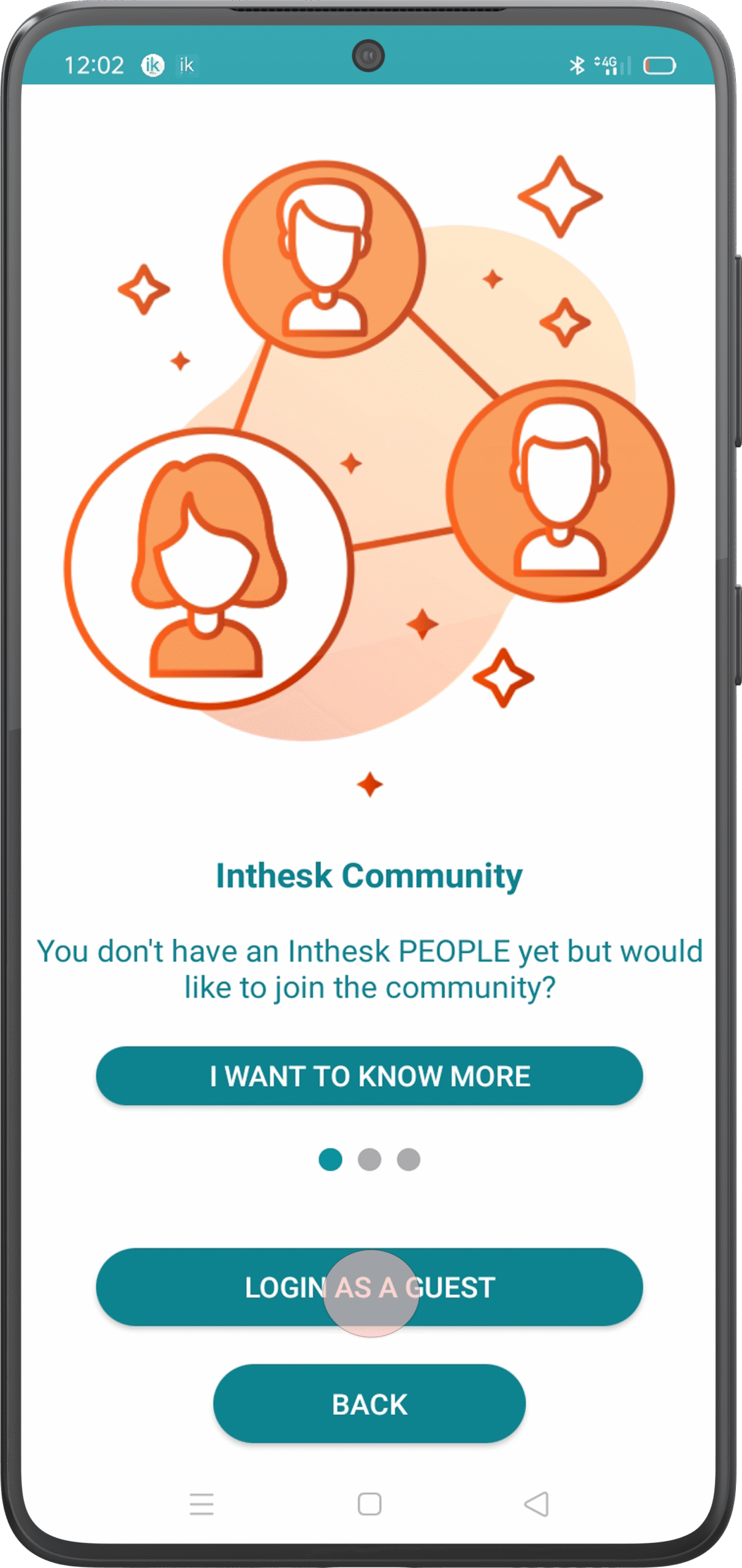
When you open the app for the first time, you will see this instruction screen. Create an account (2) or, if you already have an account, select “Enter” (3). Also, if you don’t have a purchased ik device, you can log in as a guest (1) to help the community.
Option 3.
Guest Mode
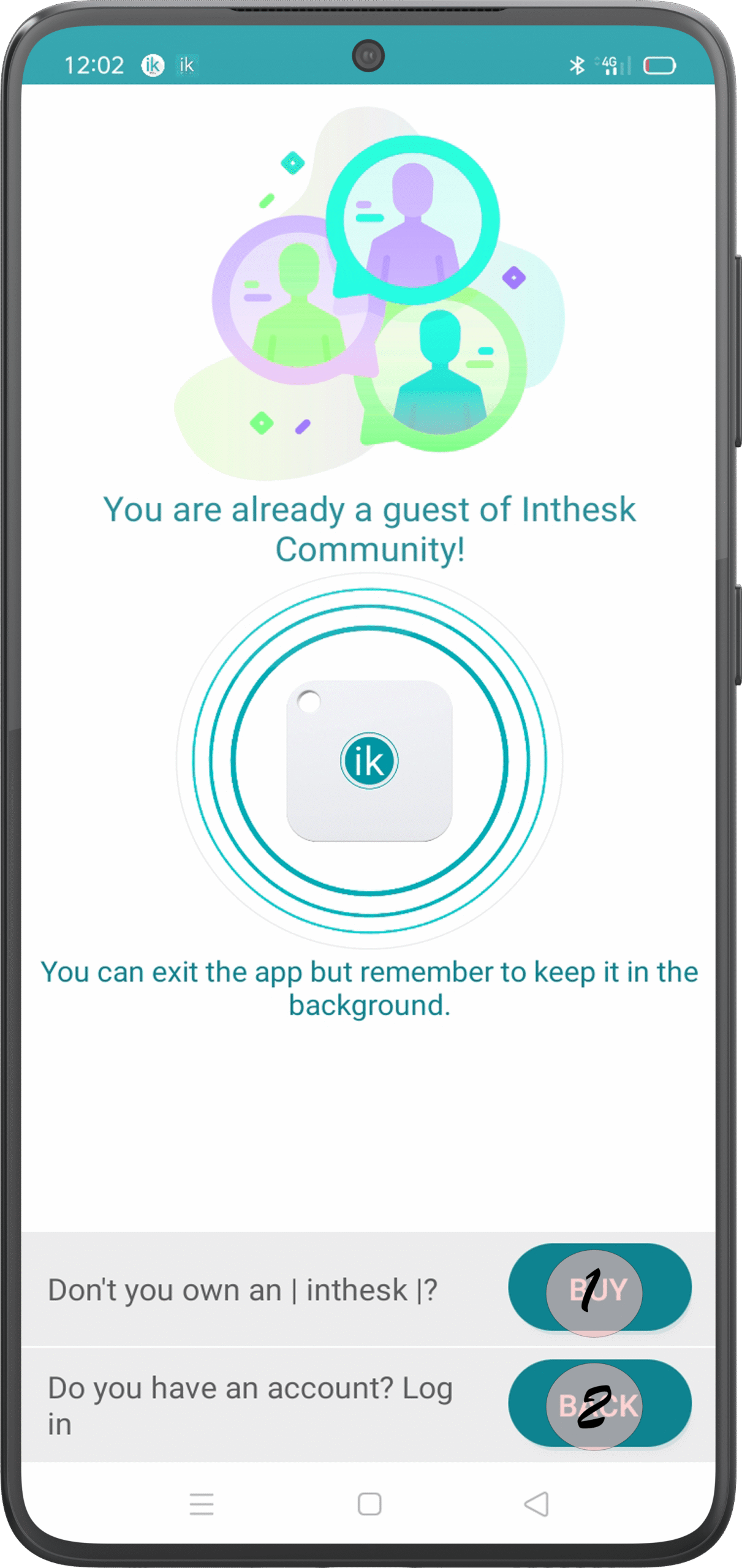
By clicking on the “Enter as a guest” button, you will access a screen where you will be told that you can use your mobile device to help the community | inthesk | to find lost devices.
Also, you will have the option to access our website and get your own ik device (1). If you already have an account, you can return to the previous screen to log in (2).
Option 1.
Attention for new user
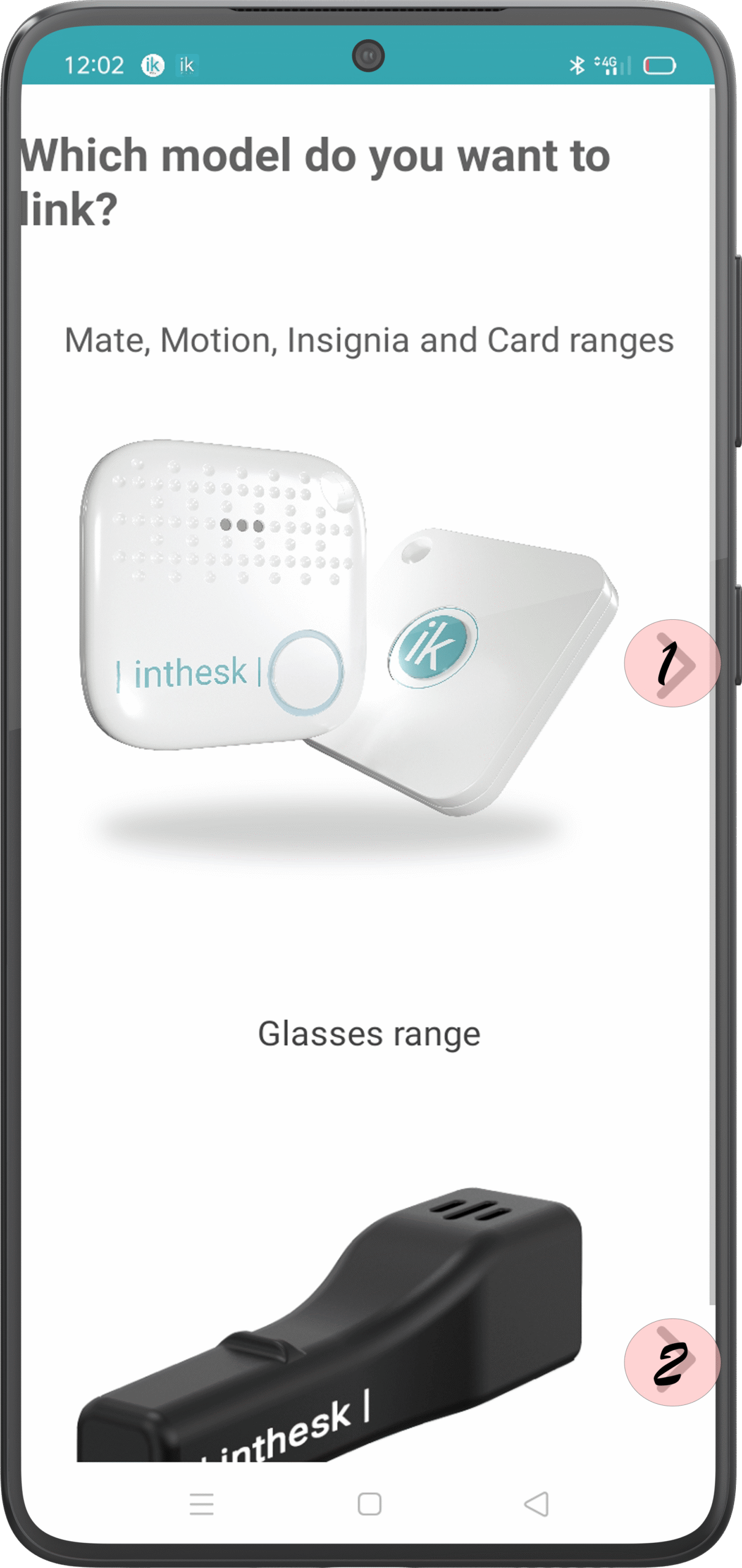
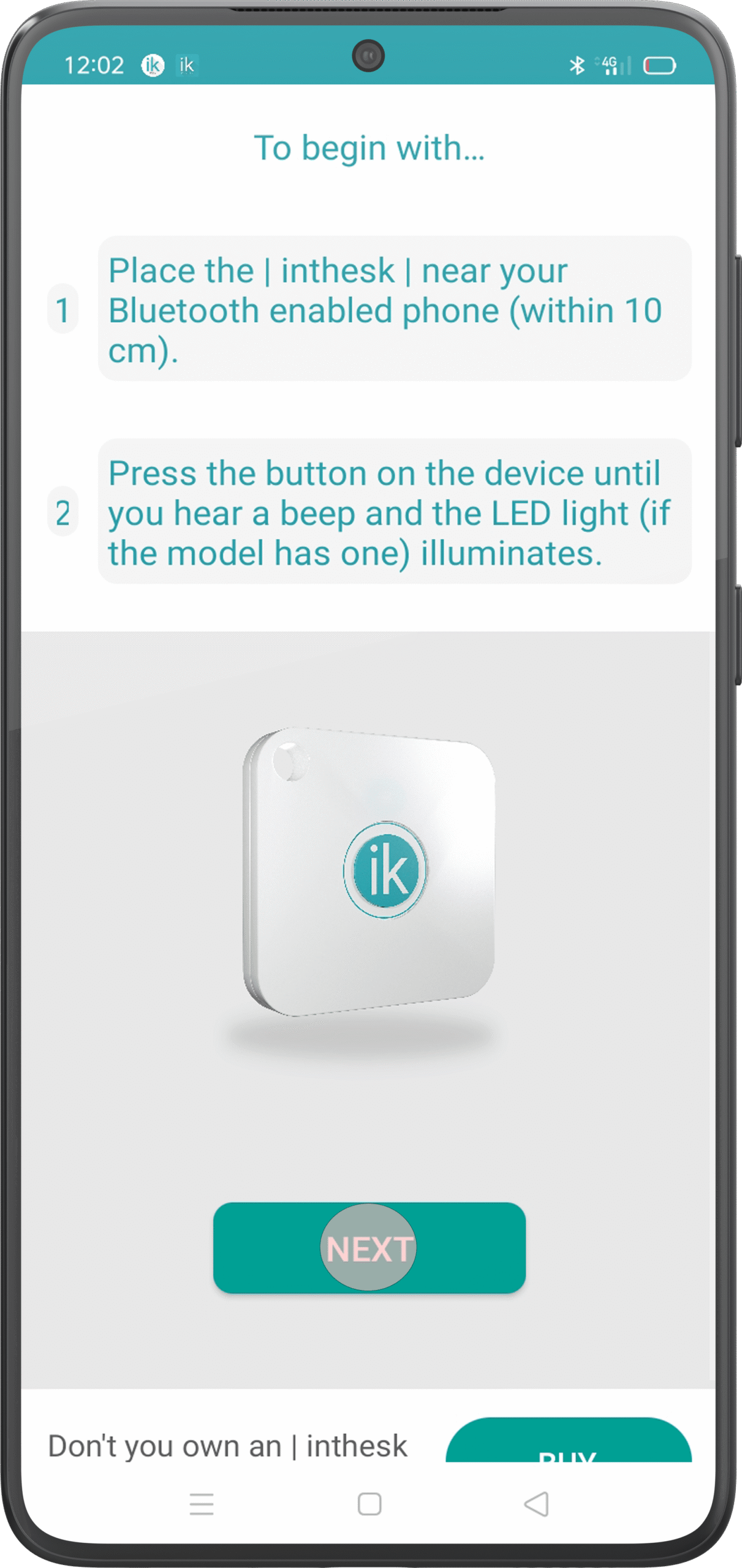
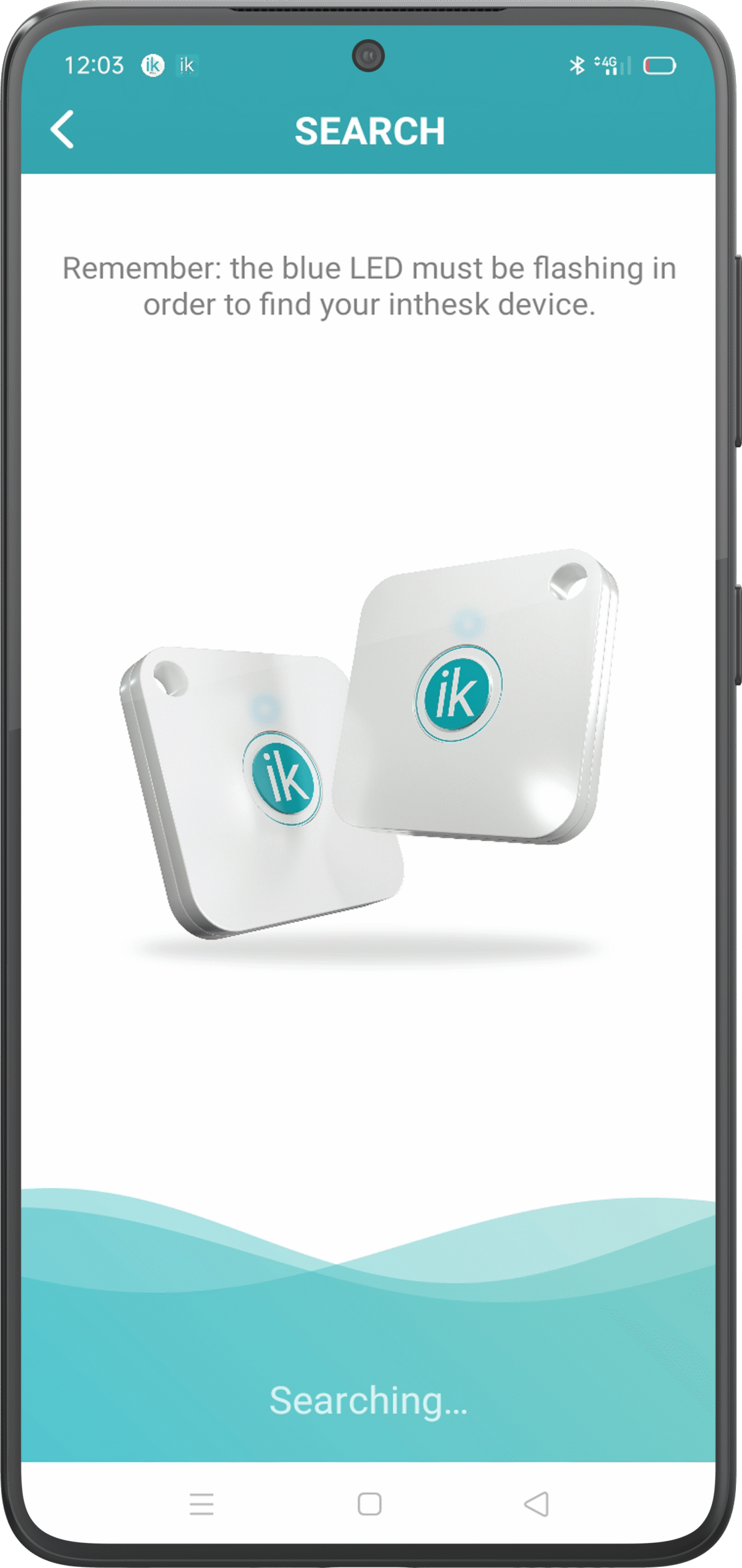
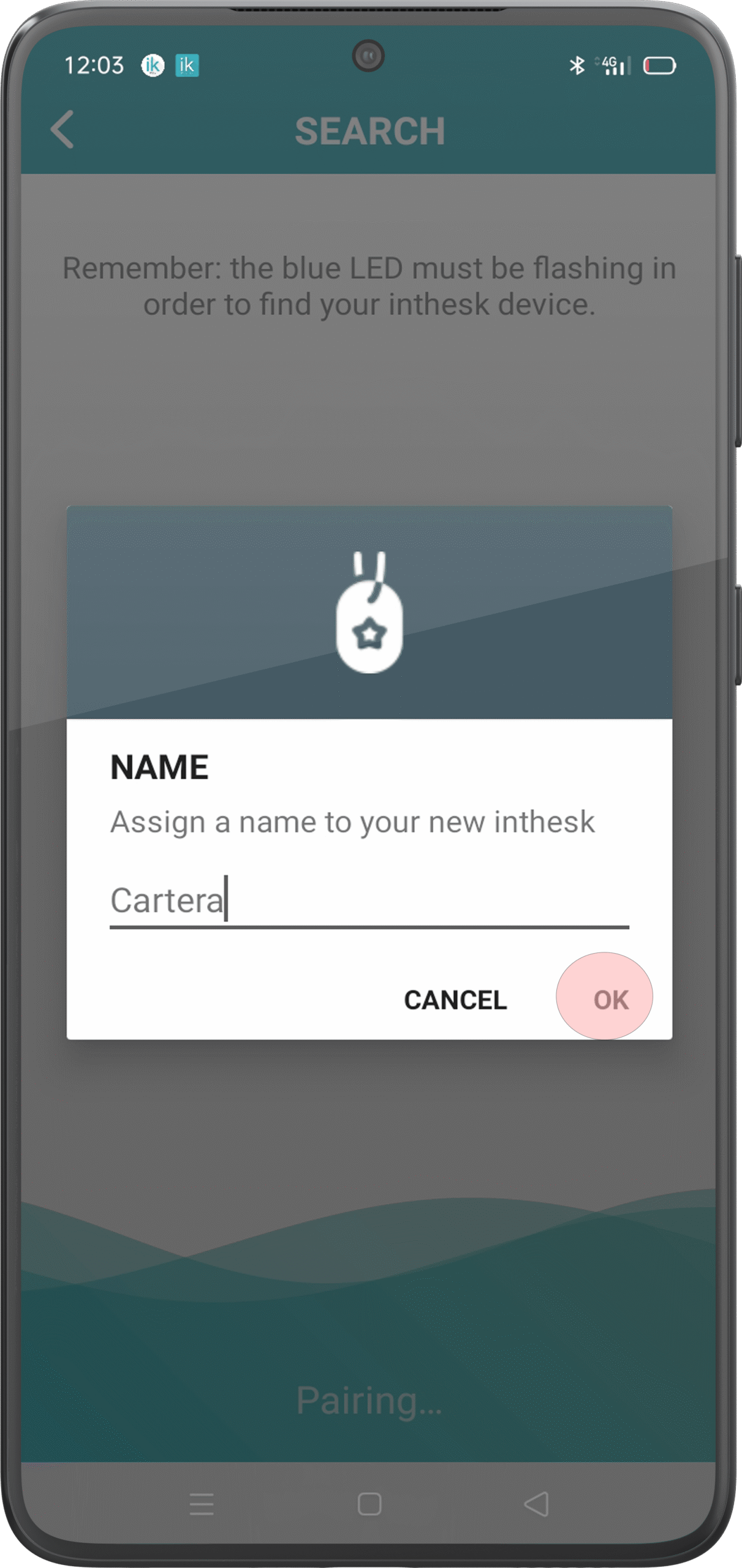
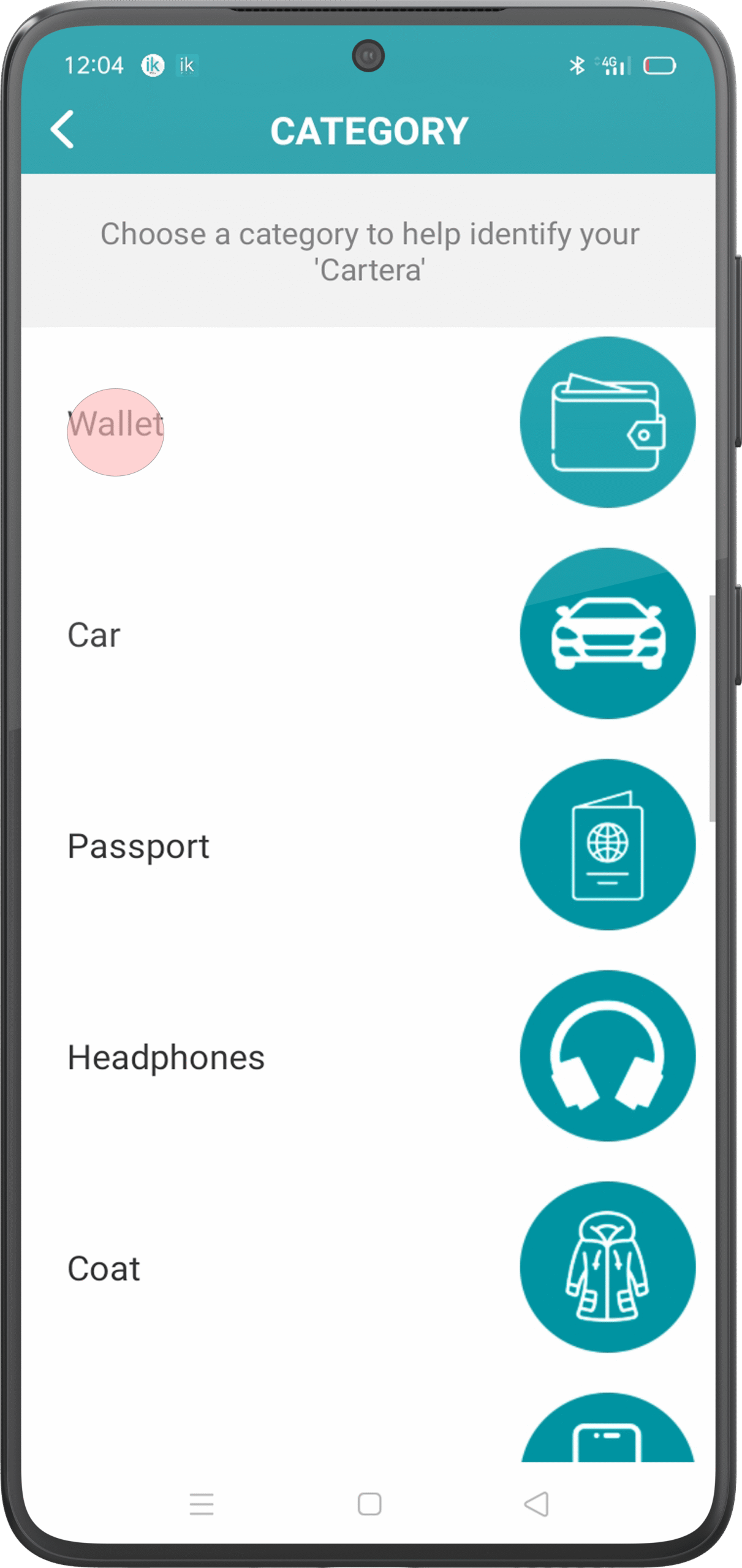
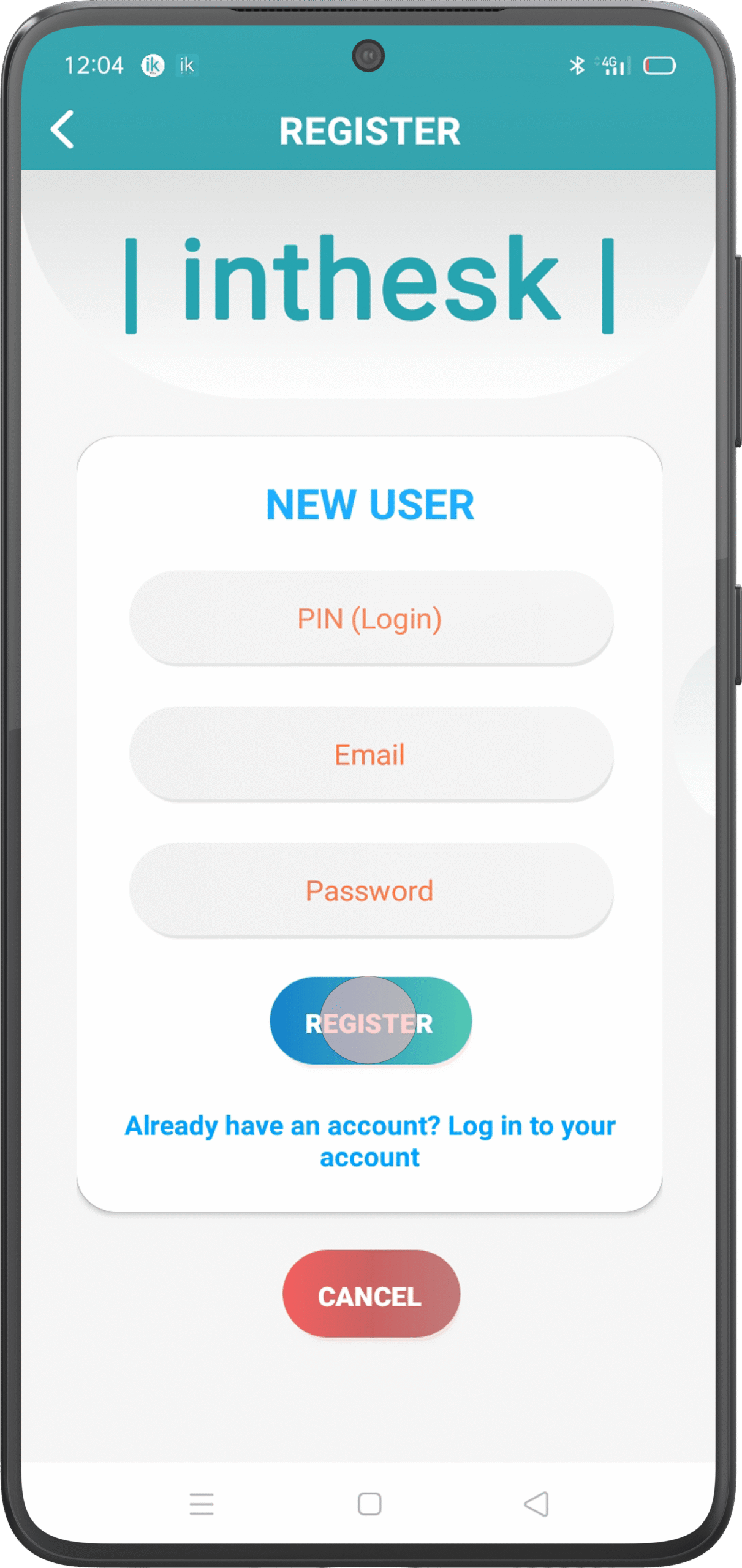
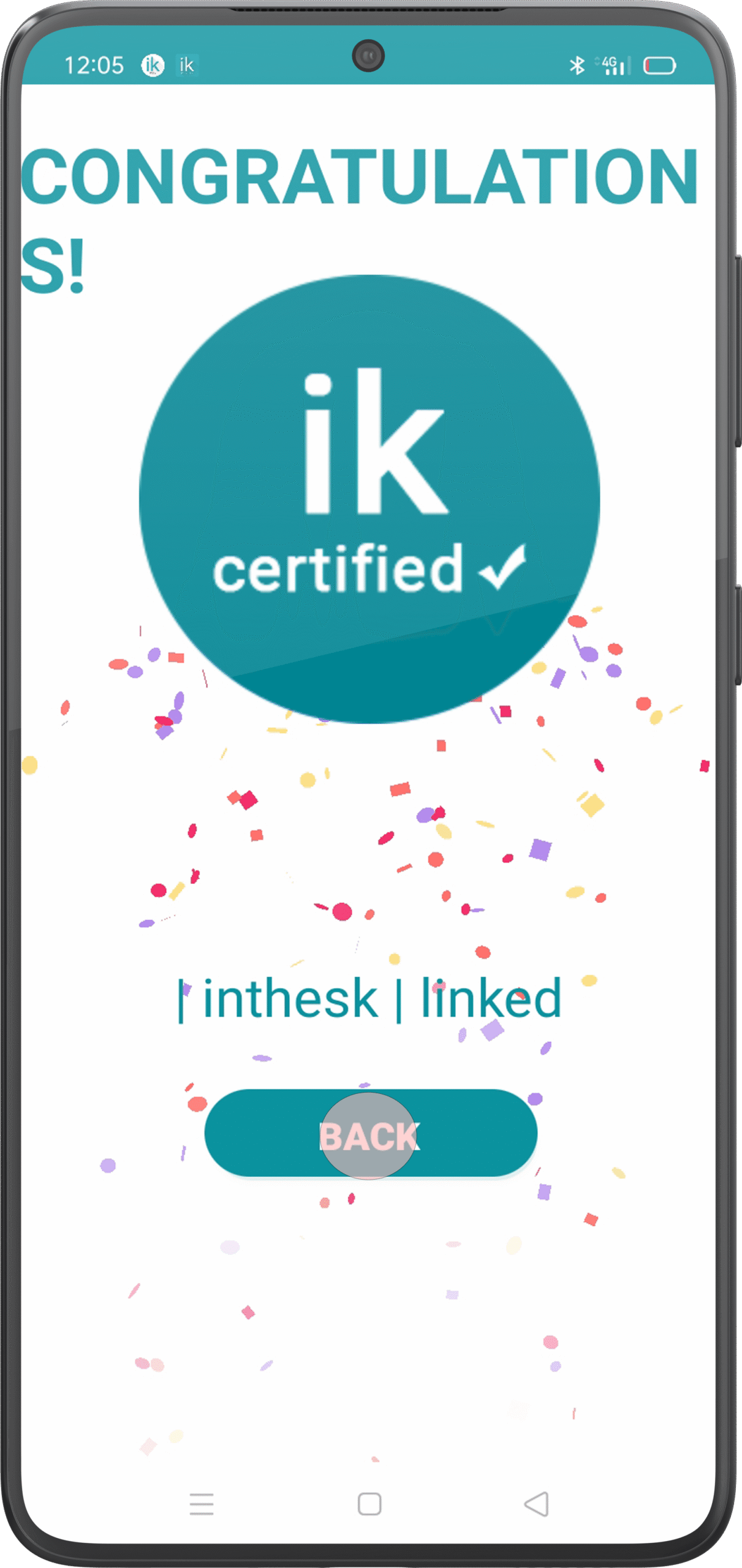
If you are registering for the first time, then by clicking on the “Sign up”, the first thing that will appear will be to add your newly acquired inthesk. You must select the model you have first and pair it with your mobile phone. Then continue with the registration process with your personal data.
Option 2.
How to use
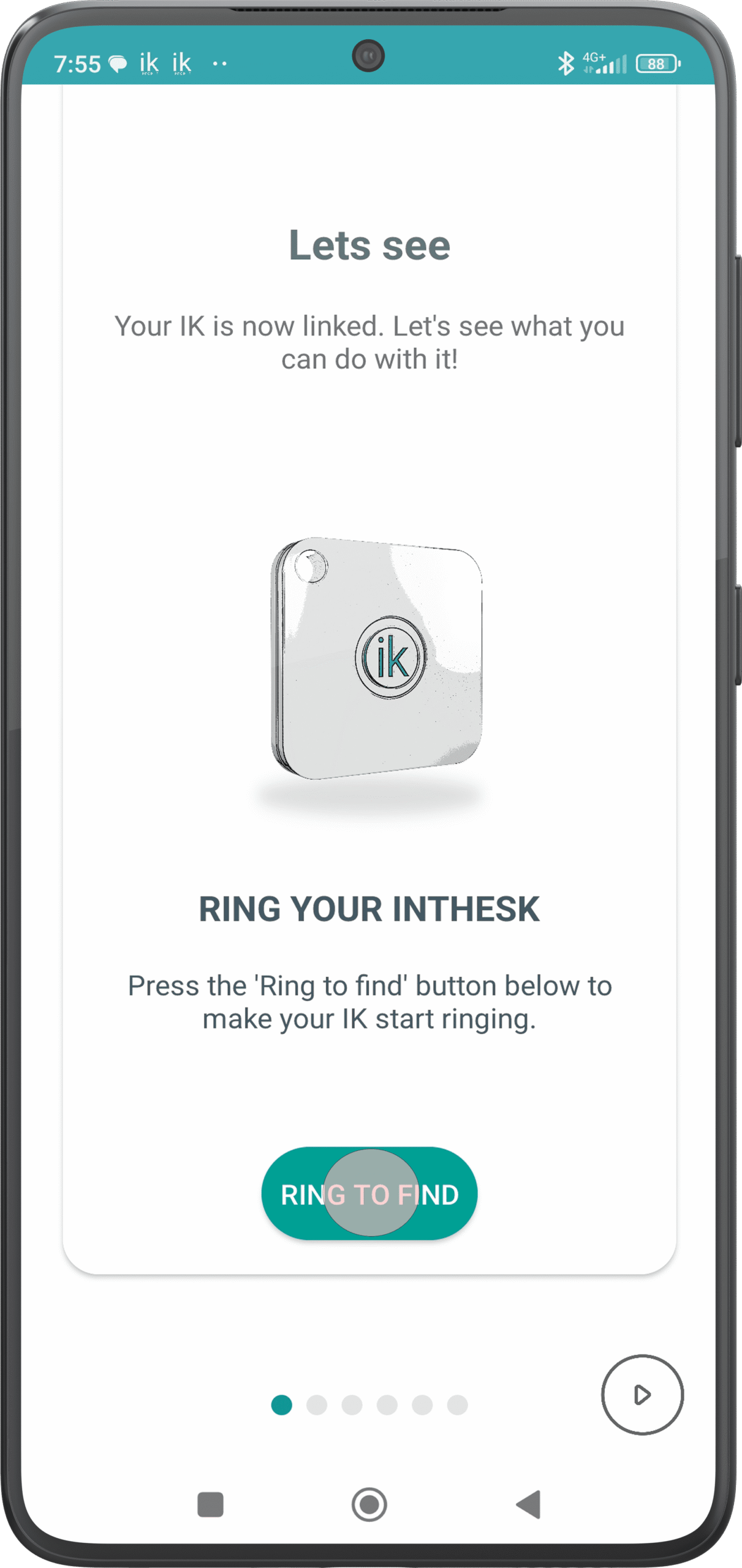
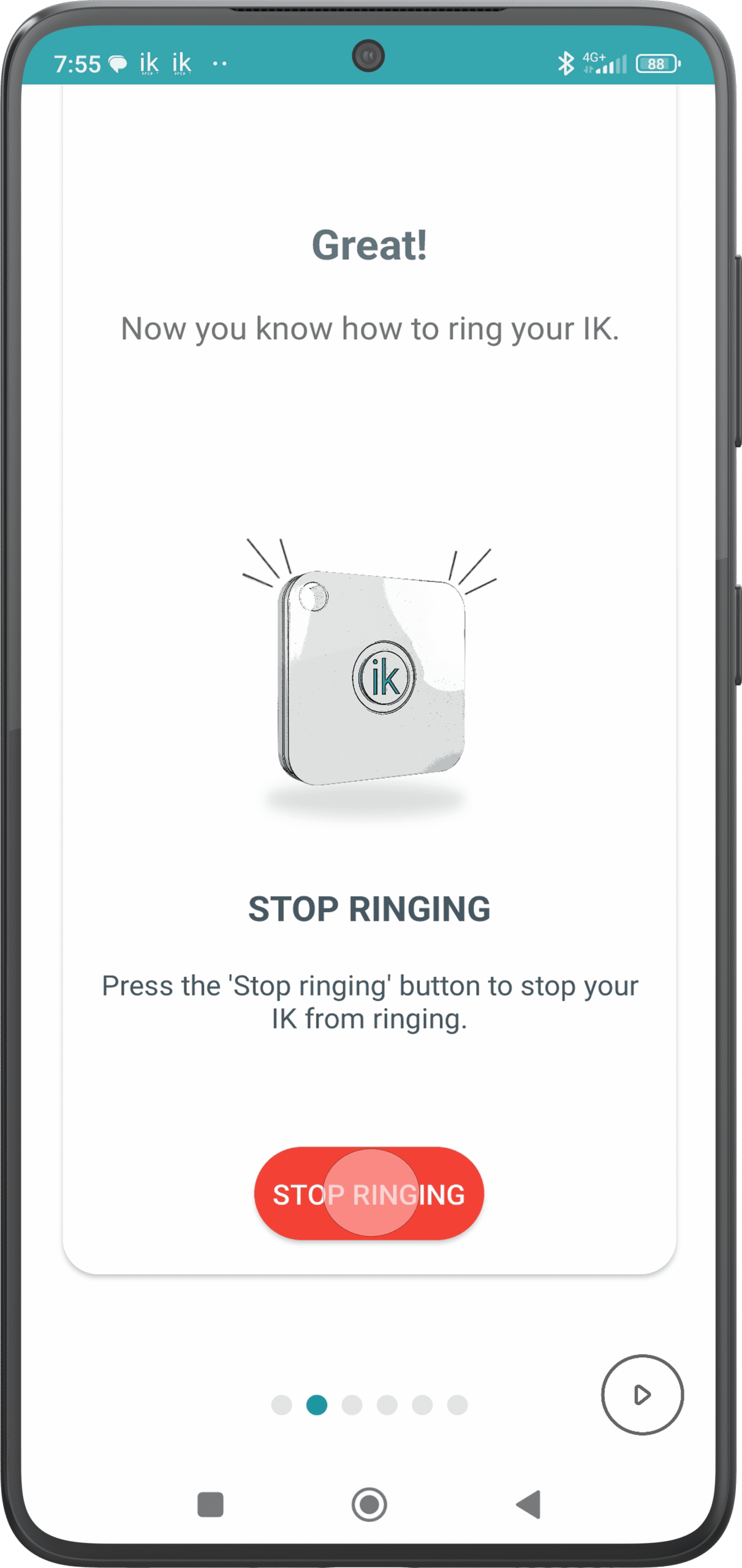
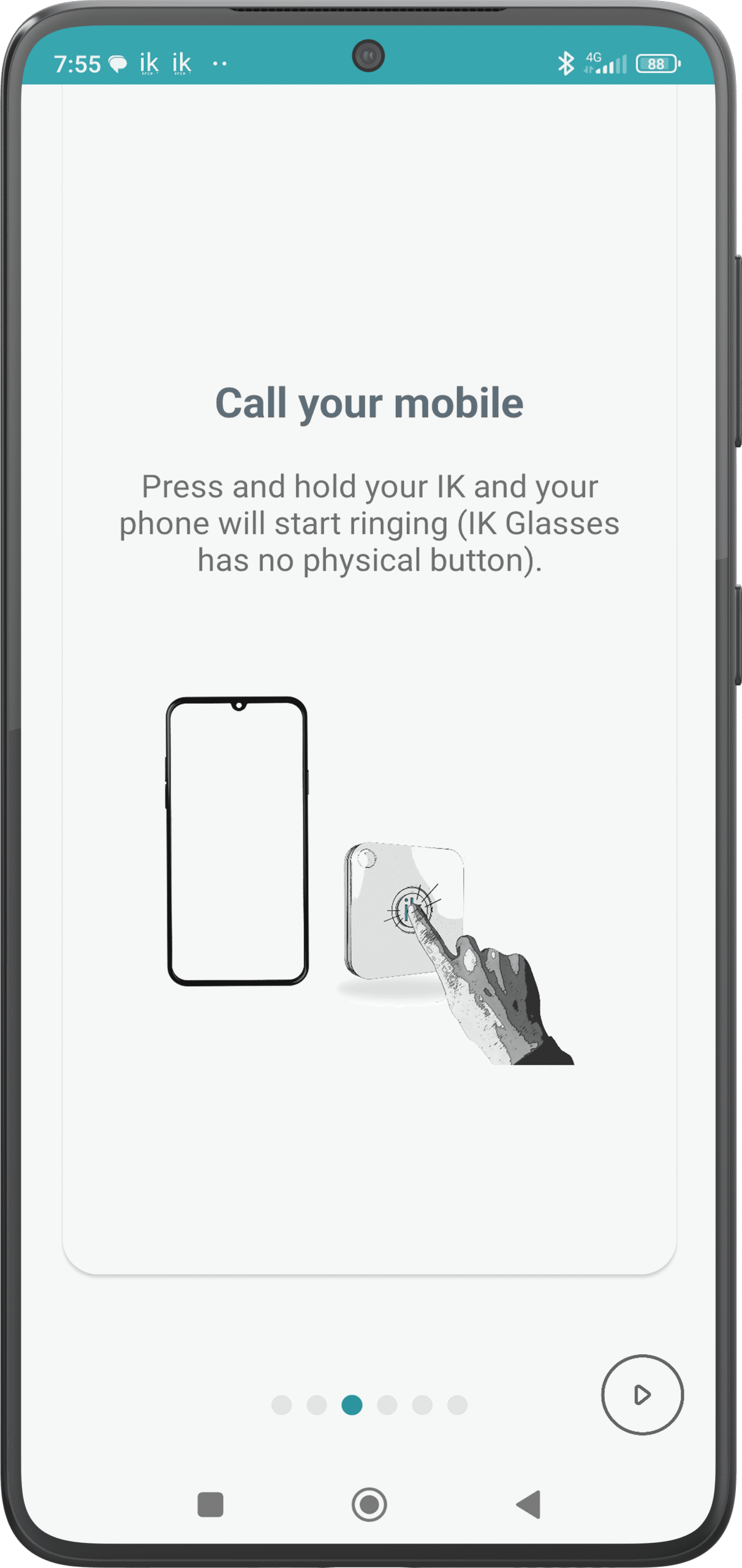
Once the device is configured correctly, a small guide will appear that will teach you how to use it quickly and simply, you just have to follow the steps indicated.
In case you already know how to use it, you can skip this tutorial just by clicking on the button that you find in the lower right corner.
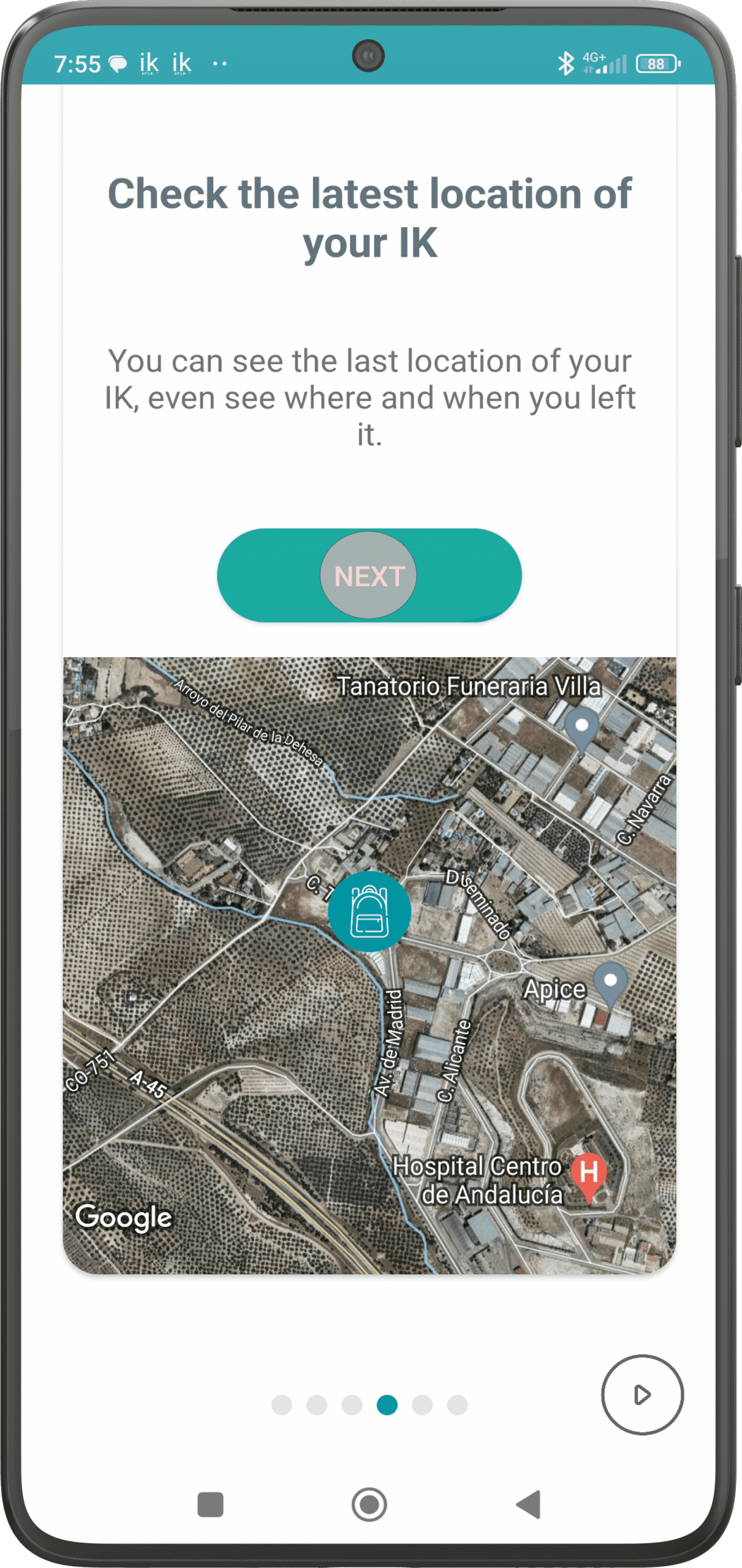
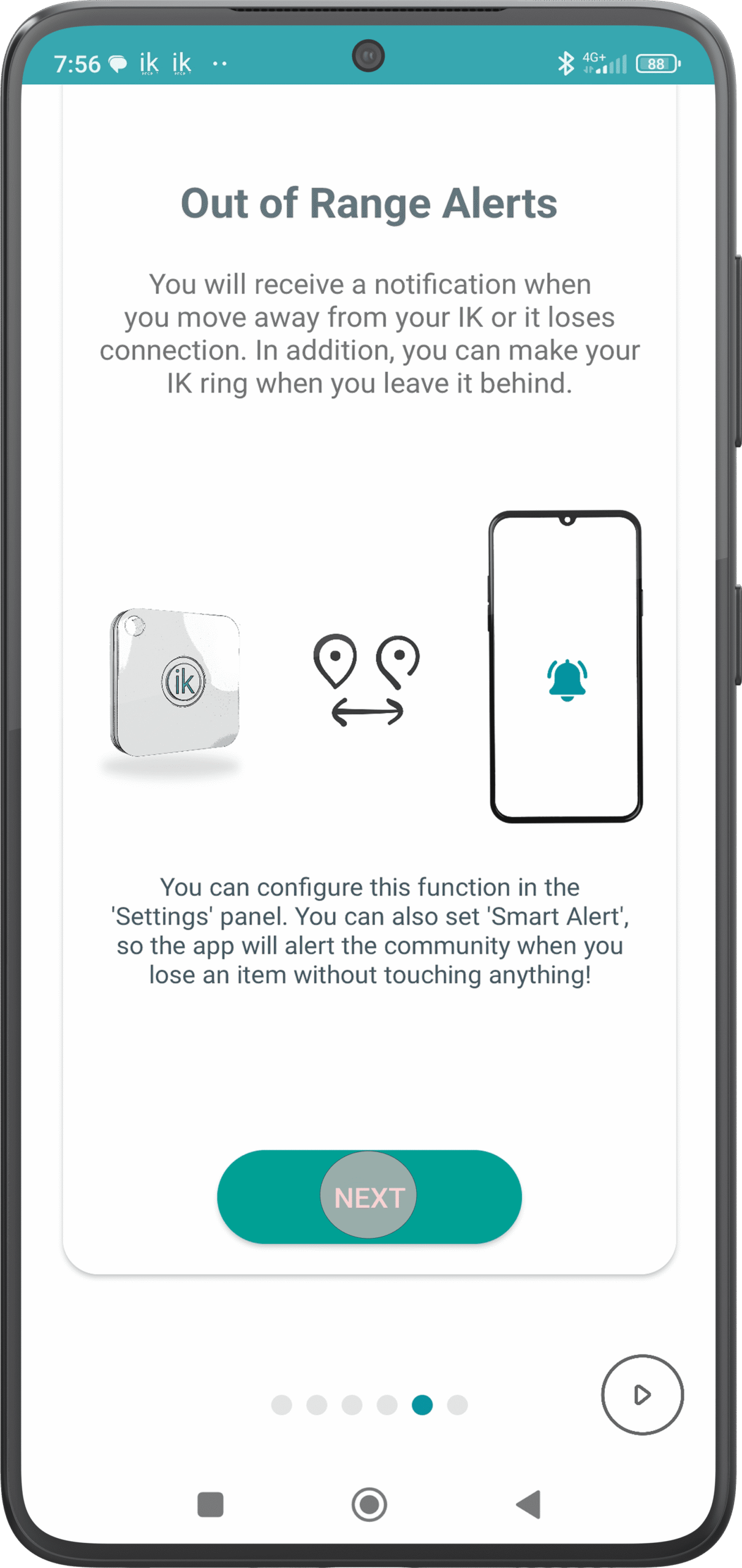
If you have created a new account, you will receive confirmation in your email.
3. Add an inthesk
Once logged in, press the up right button in the application to bring up a menu, then press the “Link new inthesk” button to add the new device.
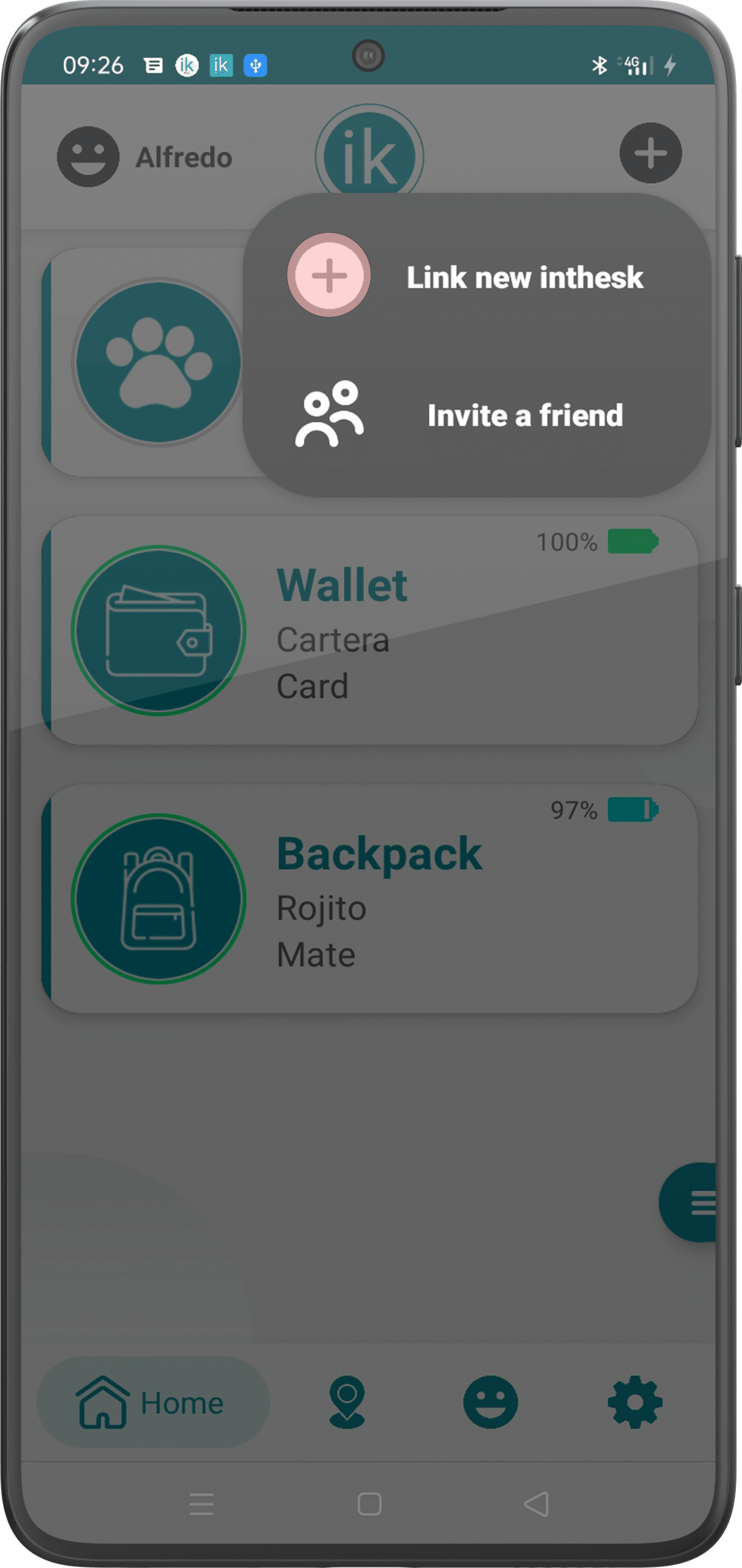
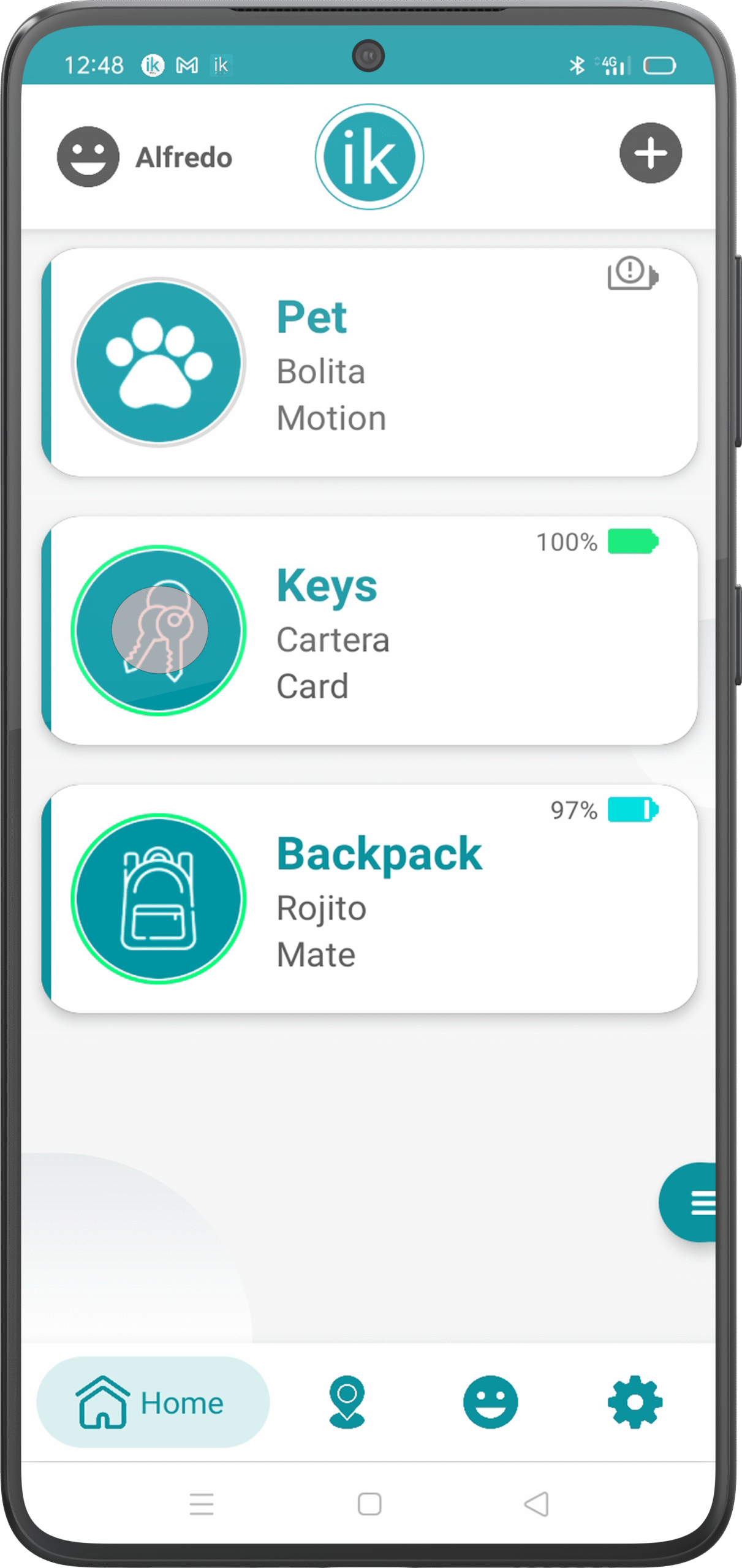
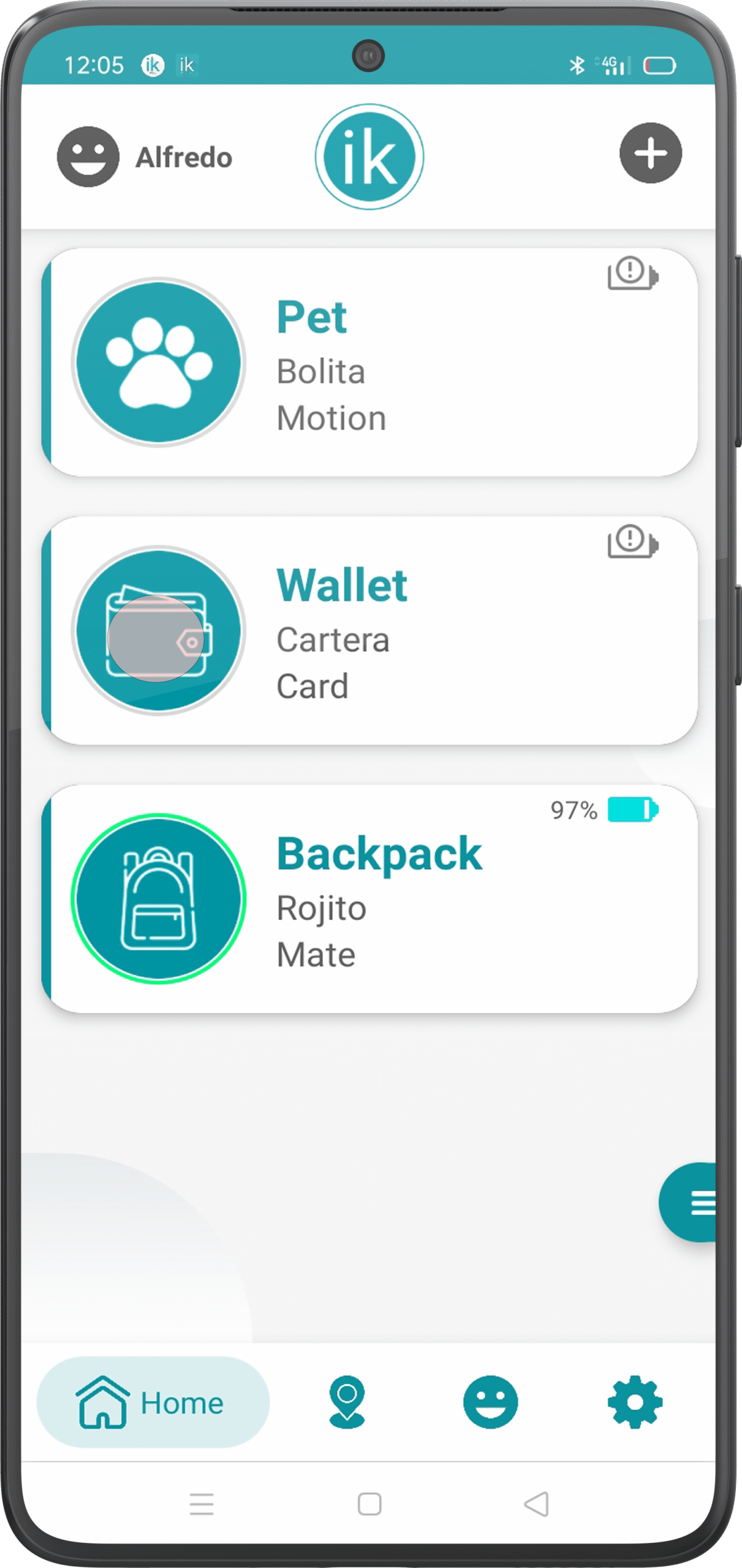
Already on the main screen you can see how your new inthesk is configured in the list with the data you have entered in the previous step and with the icon of what you have chosen for the object you want to protect.
You would already have your inthesk prepared and ready to use!
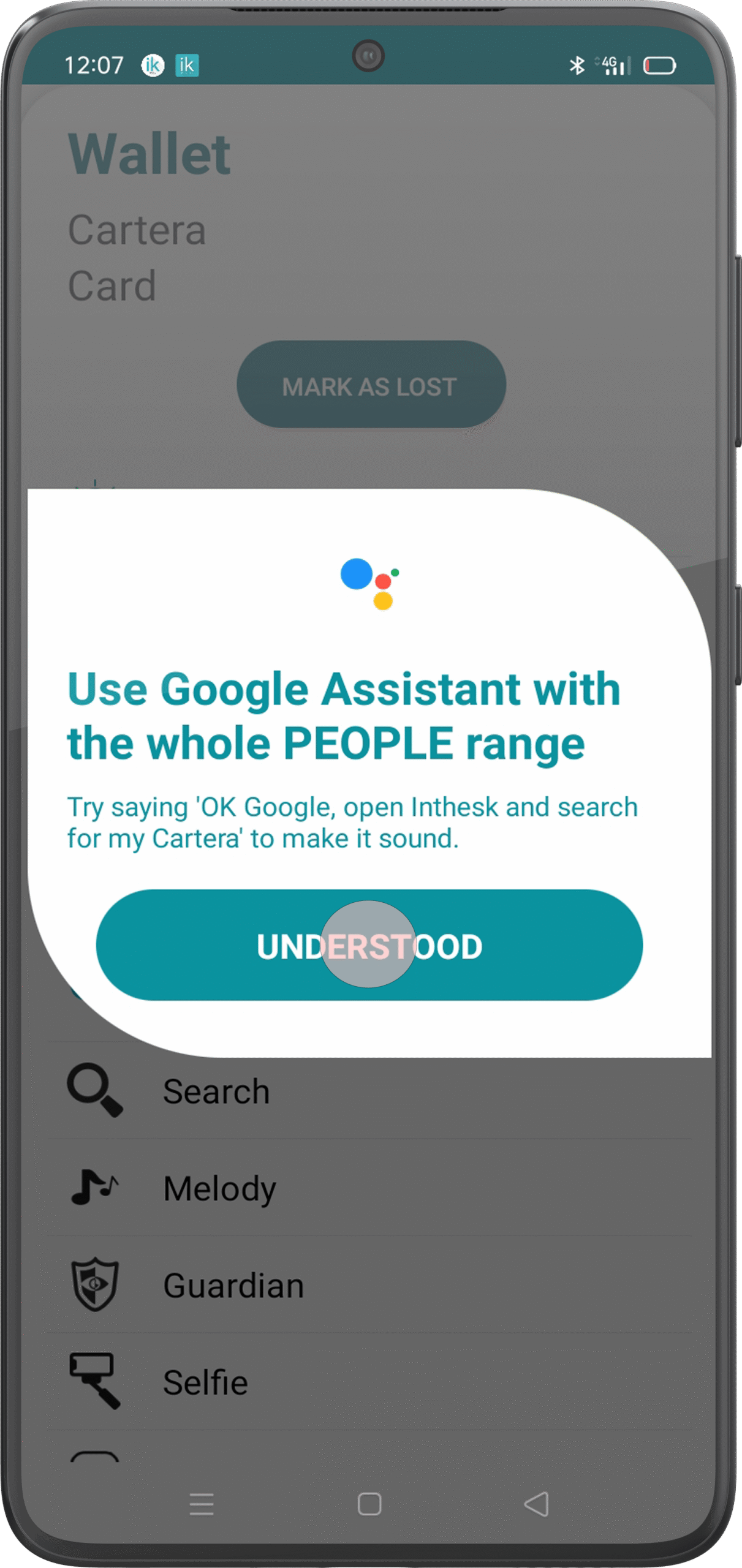
4. Use Google Assistant to locate the devices.
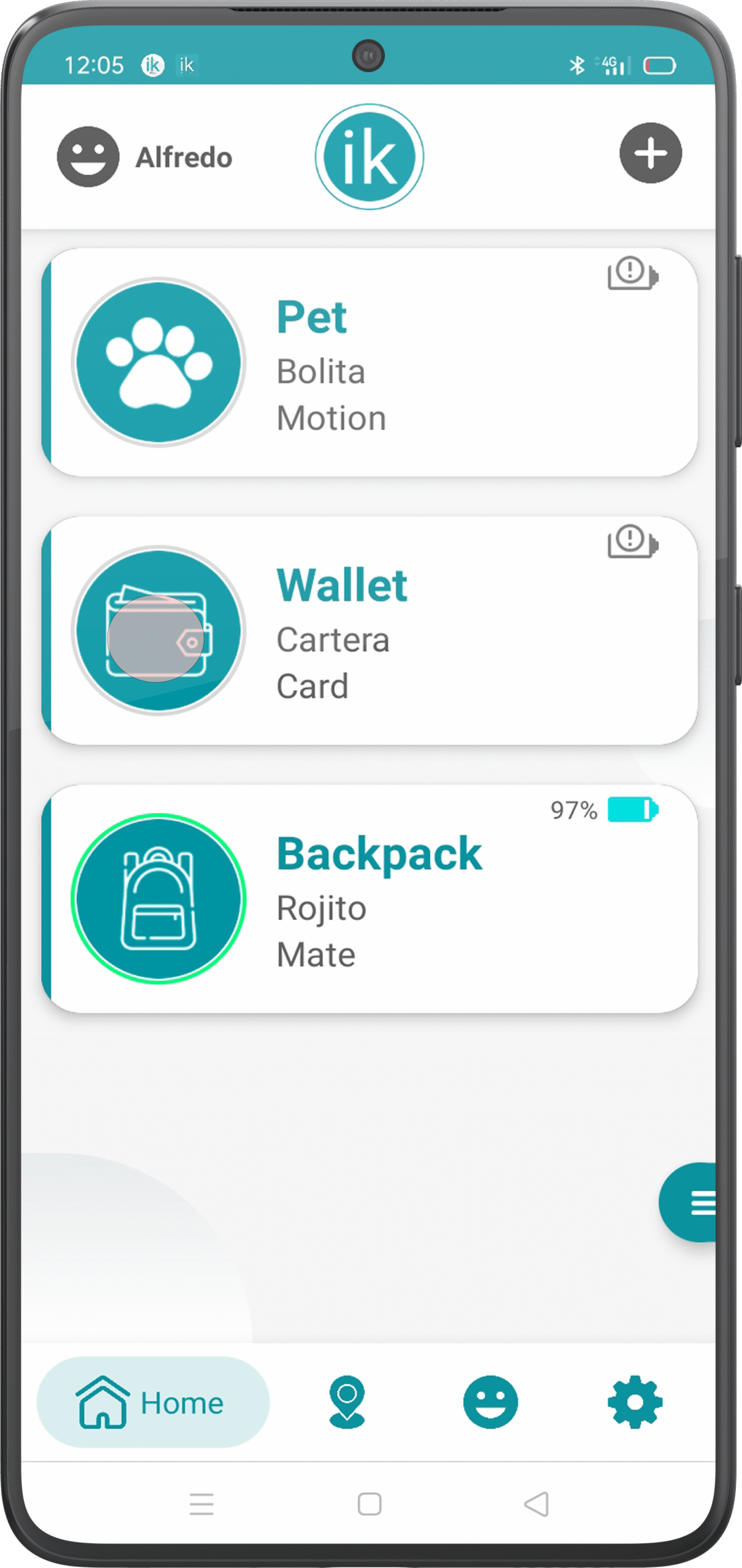
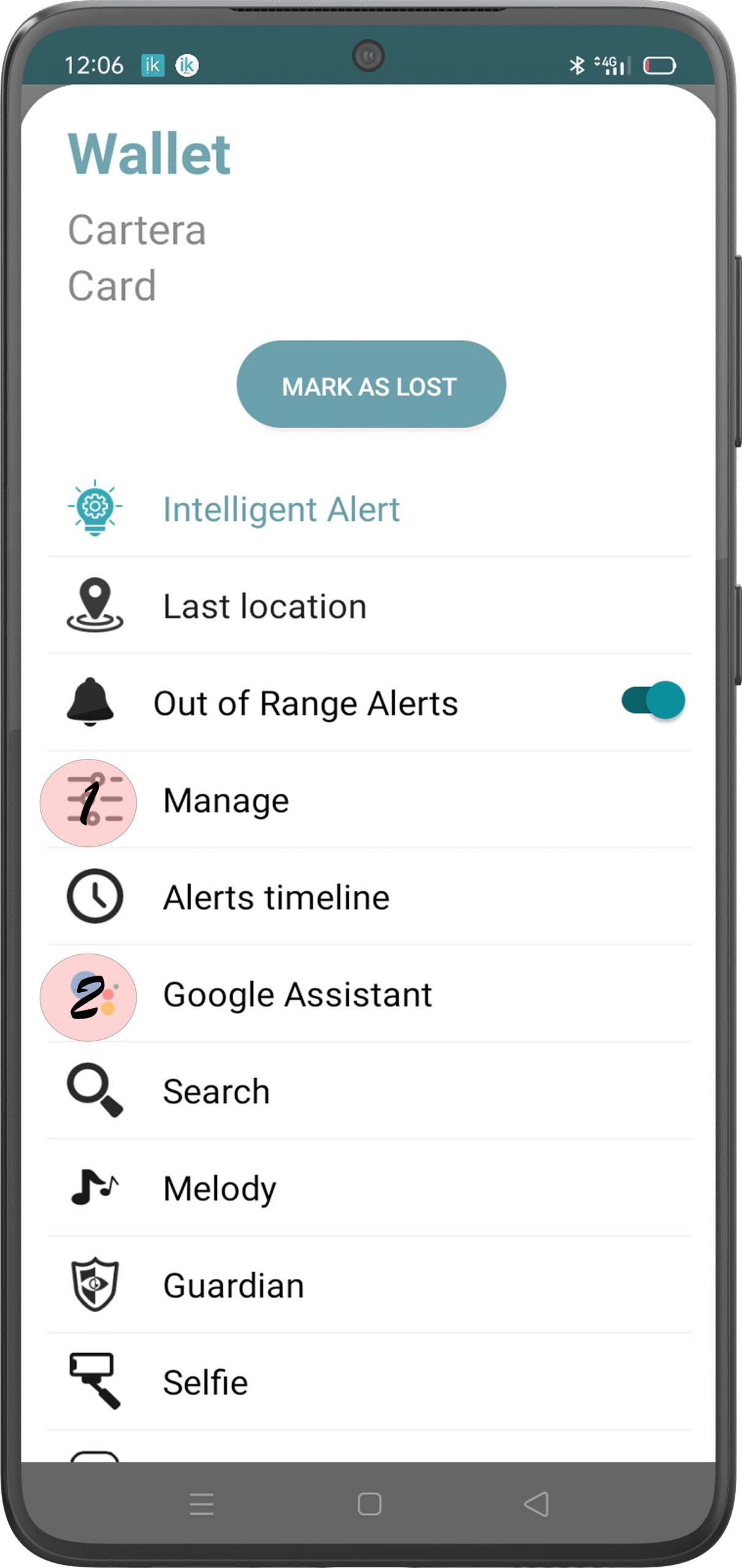
On the main screen, tap on any of your devices to access the menu. You must press the “Google Assistant” button, to receive information on how to call your devices through the Google Assistant.
Option 2.
5. Edit a registered inthesk.
On the main screen, tap on any of your devices to access the menu. You must press the “Manage” button to edit the configuration. Within this function you can modify both the name and the category of your inthesk for whatever you want.
Option 1.
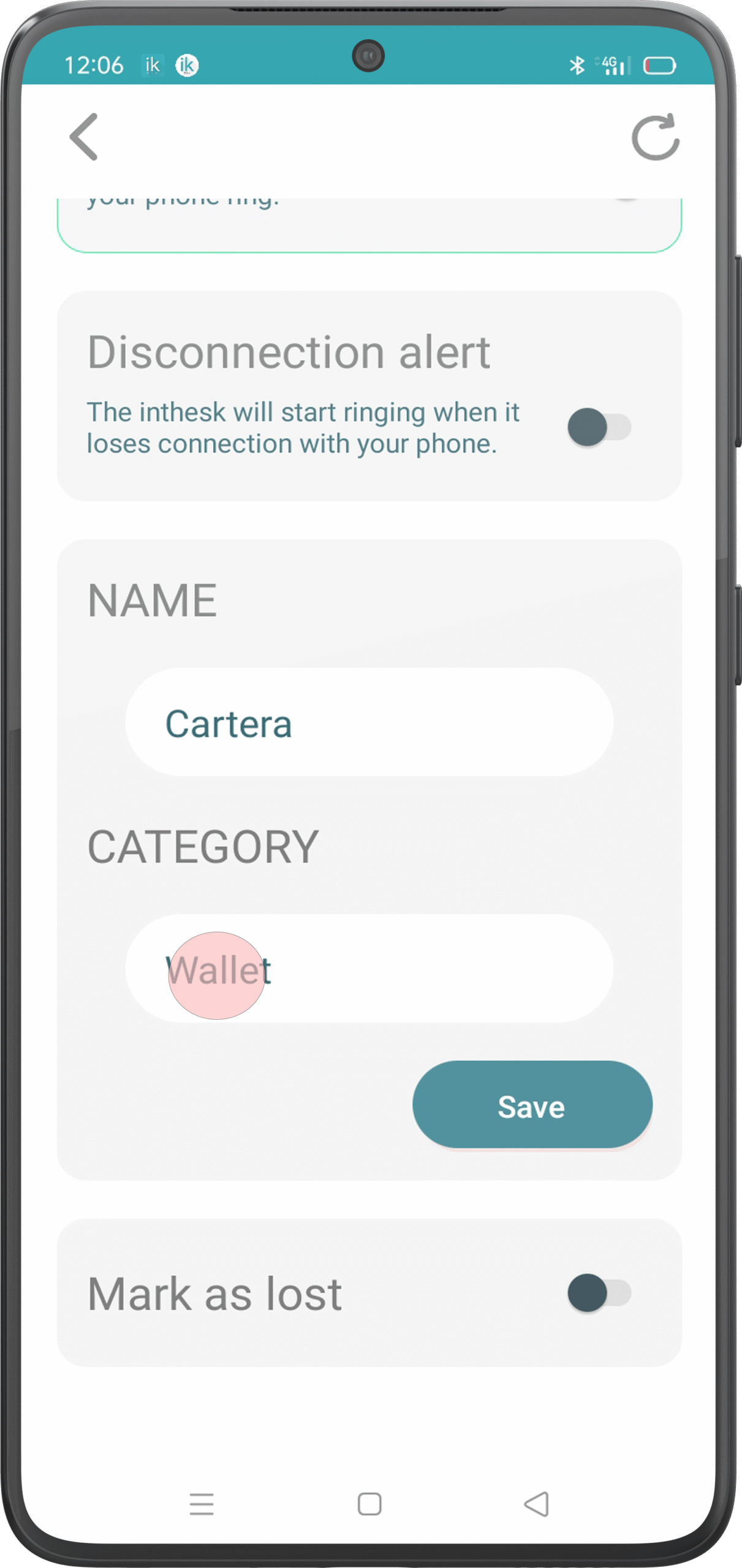
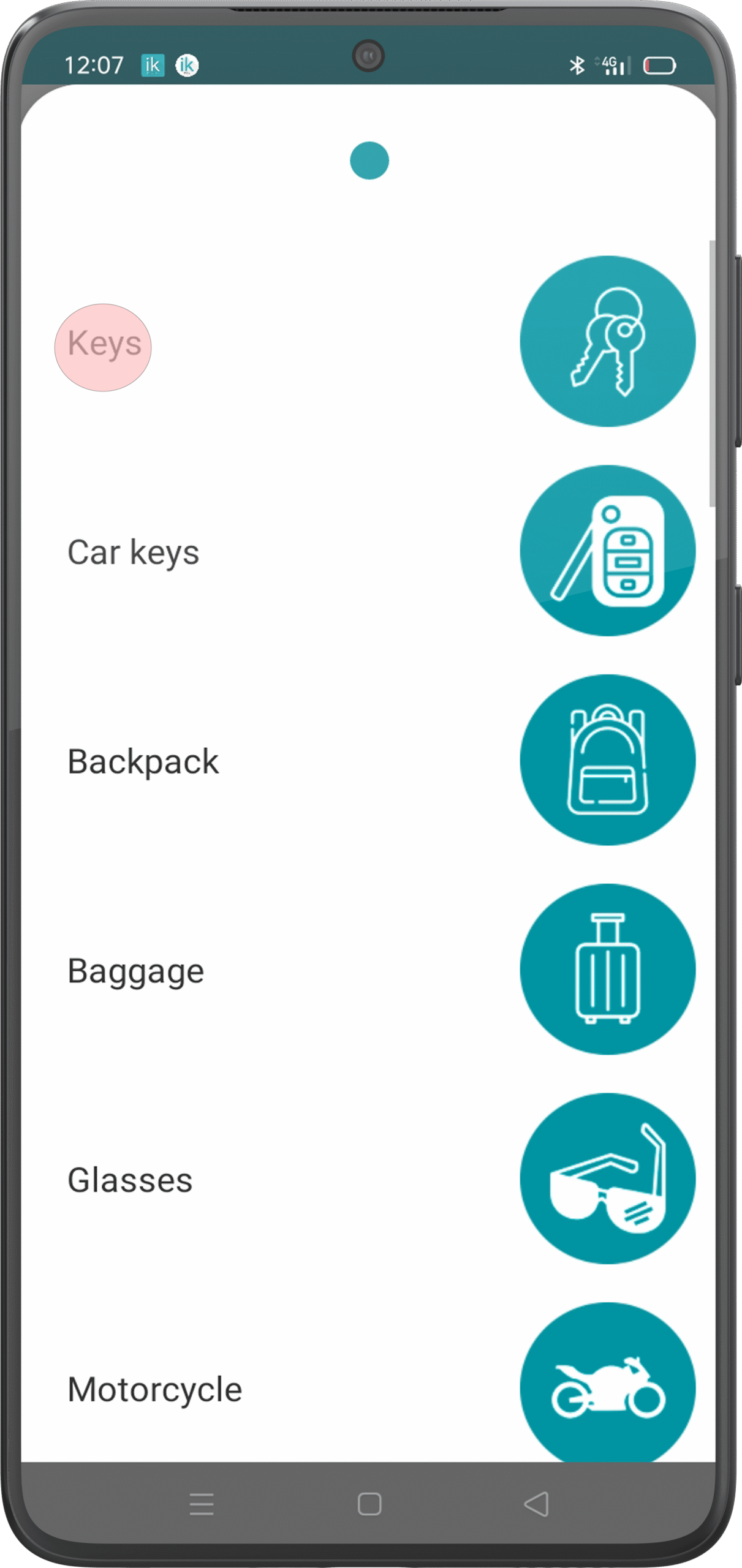
Now you can change the category and tool type of your new inthesk. To finish, click the Save Changes button.